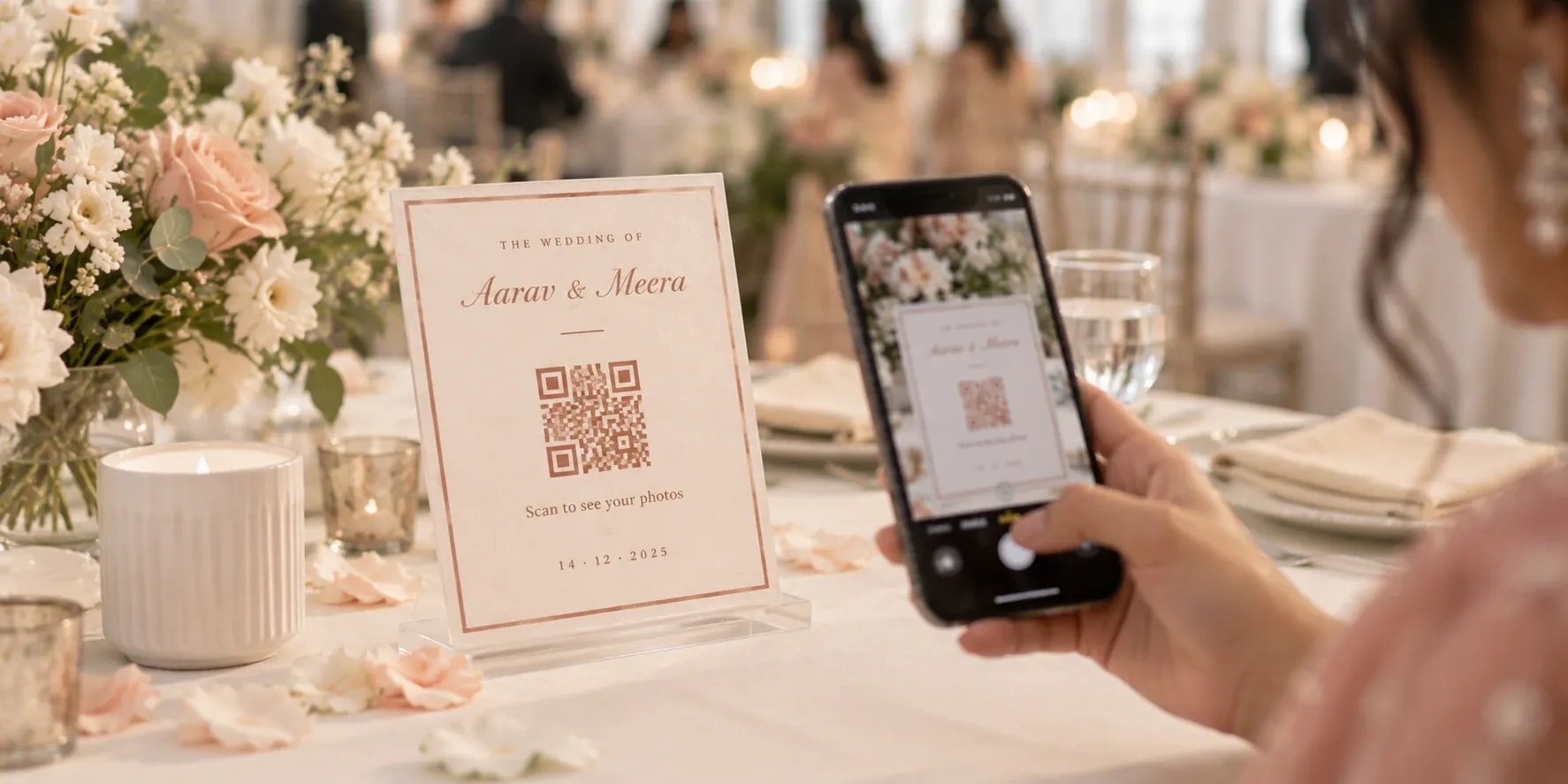
How to Share Event Photos Using Face Recognition
A practical guide for photographers: deliver event photos with face recognition so every guest finds their own photos with one selfie and a QR code.
Key takeaways
- Face recognition lets each guest find their own photos with one selfie, so nobody scrolls through thousands of images.
- Photos upload while you shoot, so guests get them at the venue, when they are most likely to share and tag your studio.
- Guests see only their own matches, while the client still gets the complete album.
- Setup takes a few minutes before the event, and the work after it shrinks to almost nothing.
The fastest way to get event photos to guests is to let each guest find their own photos with a selfie. Face recognition makes that possible, and it removes the hours you spend after every event answering "where are my photos?"
The problem every event photographer knows
You know the routine. A wedding, a college fest or a corporate offsite ends with thousands of photos. Within an hour, messages start arriving. Guests want their pictures today, not next week. So you upload everything to a shared drive, post one link in a WhatsApp group, and hope people have the patience to scroll through 3,000 images to find the 12 they appear in.
Most don't. They give up, ask you directly, or screenshot low-quality previews and post them anyway. Your best work reaches people as a blurry forward with no credit to your studio.
This guide explains how face recognition photo sharing works, why it beats a drive link, and how to set it up for your next event. It is the idea behind instant AI photo sharing.
What is face recognition photo sharing?
Face recognition photo sharing is a delivery method where software reads the faces in every event photo, and each guest gets only the photos they appear in. The guest proves who they are with a single selfie. The software compares that selfie against every face it has found and builds a personal gallery for that guest.
Think of it as a search engine for faces. Instead of typing a name, the guest shows their face, and the gallery answers with every photo that matches. Group shots count too: if a guest is standing third from the left in a photo of 40 people, that photo still lands in their gallery.
For you, the photographer, nothing changes about how you shoot. The difference is entirely in delivery: one event, one link or QR code, and every guest sees a different, personal set of photos.
How it works, from shutter to guest's phone
The whole flow takes six steps, and guests only see the last three.
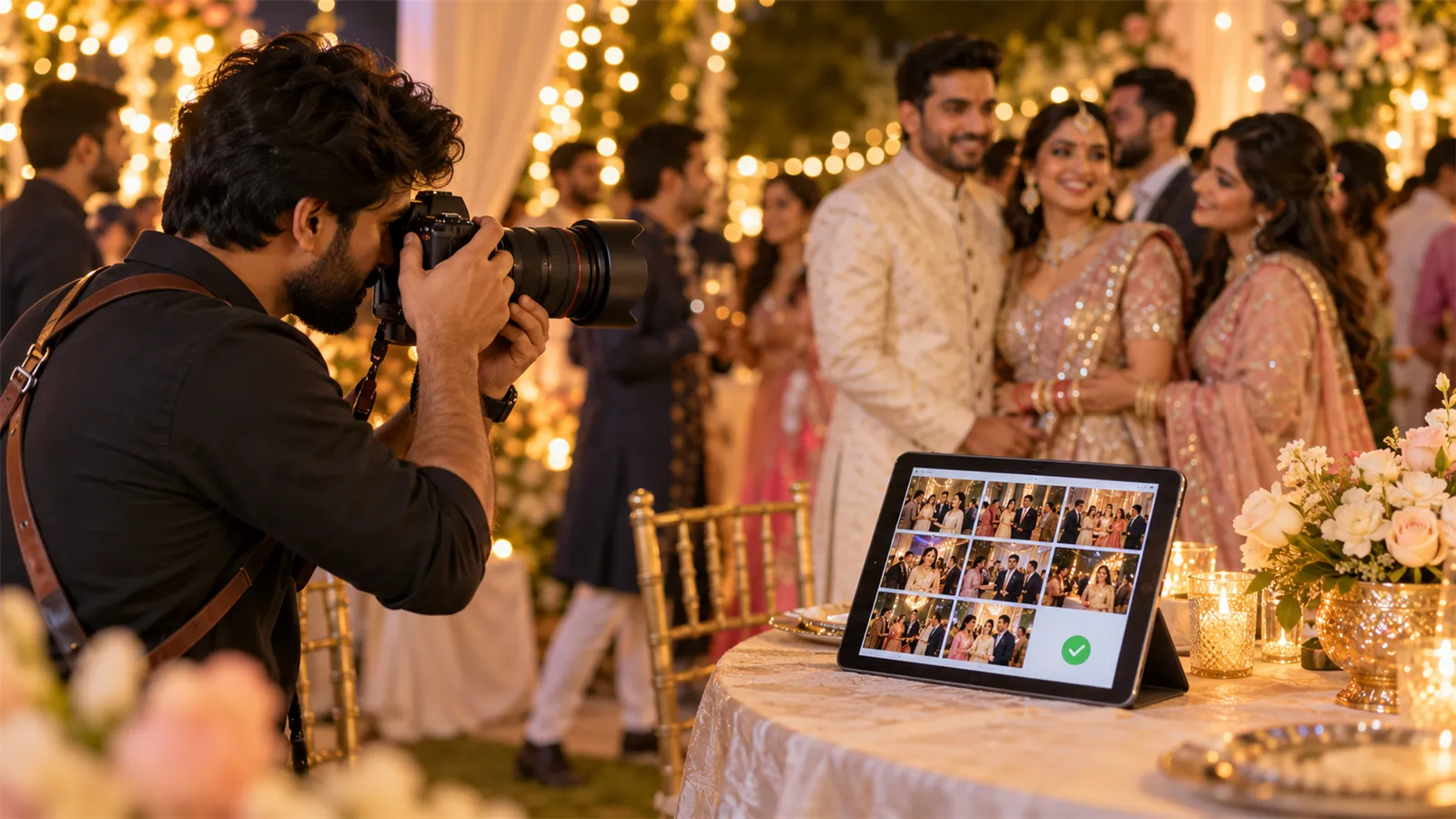
- You shoot as usual. Use your normal cameras, settings and team. With live upload, photos go to the cloud while the event is still running.
- Photos upload to the event gallery. Each event gets its own gallery, so a wedding's photos never mix with a conference's.
- The software indexes every face. Each face in each photo is detected and stored as a mathematical pattern, not as a name.
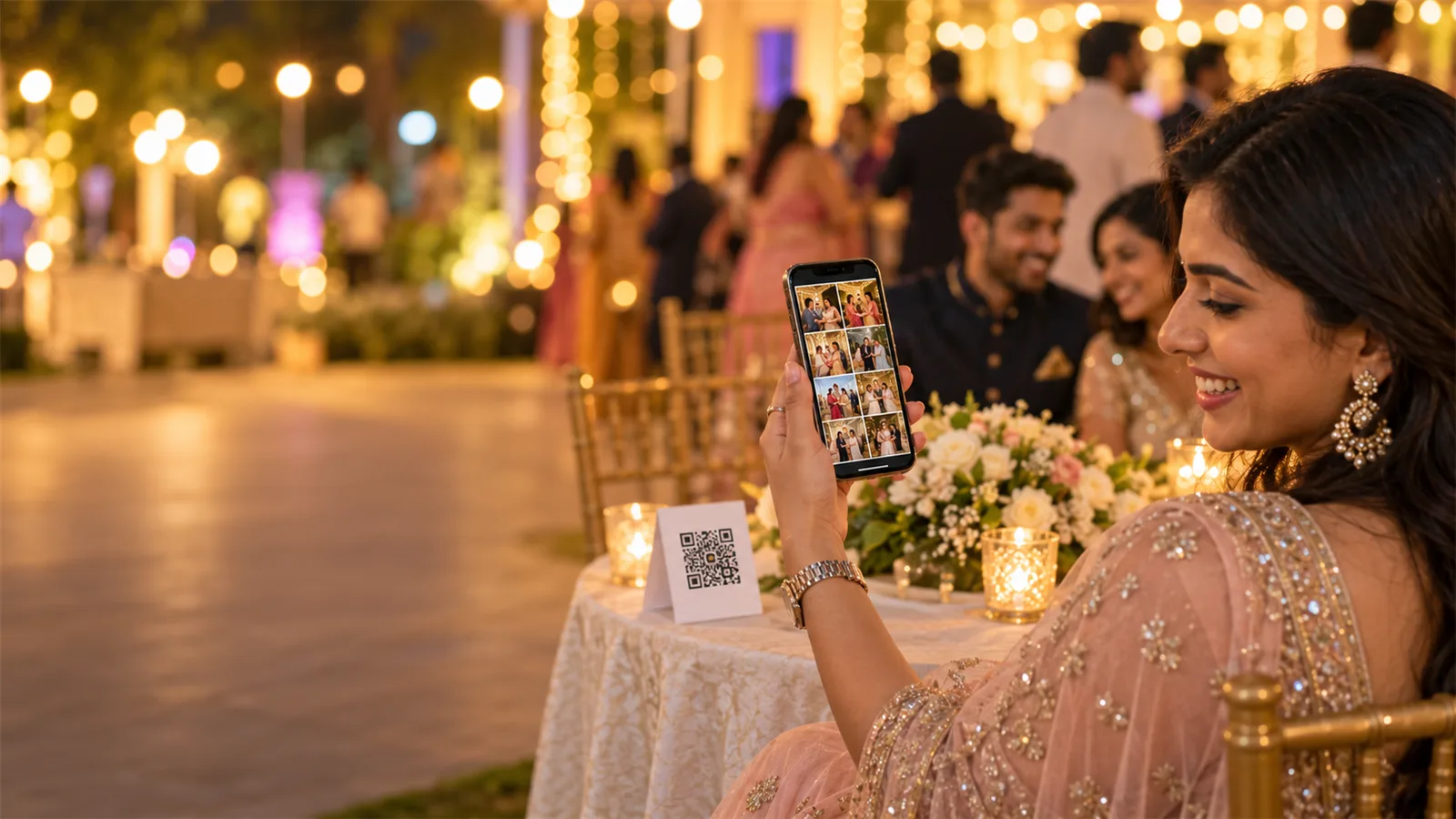
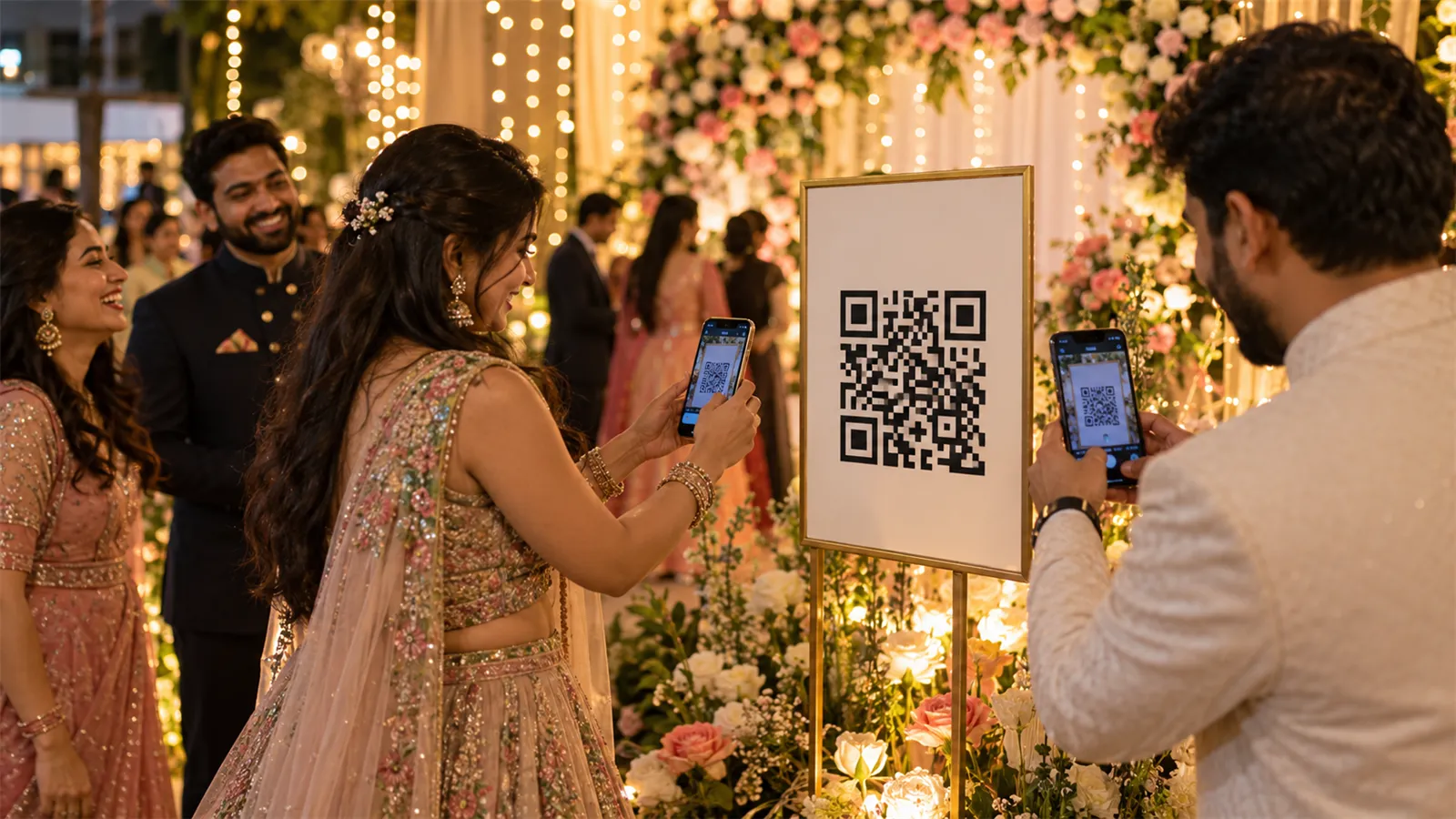
- The guest scans a QR code. You place the QR code on a standee, a table card, the invite or a screen at the venue.
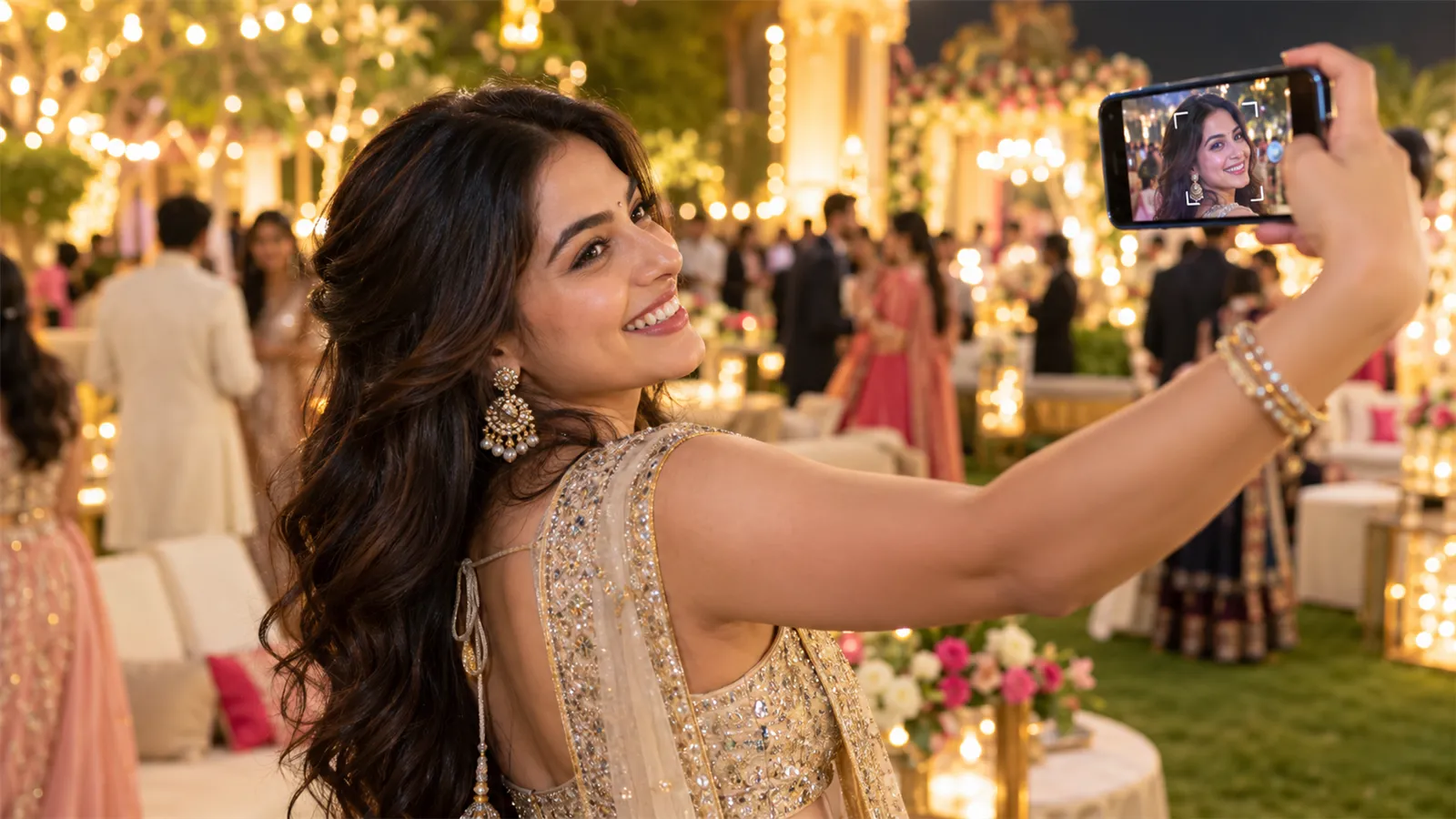
- The guest takes one selfie. The selfie is compared against every indexed face in that event's gallery.
- The guest sees their own photos. Their personal gallery opens with every match, ready to view and download. New photos keep appearing as you upload them.
Because steps 1 to 3 run during the event, guests can find photos while they are still at the venue. That is when they are most likely to share them, and most likely to tag your studio. See the full flow on the how it works page.
Why it beats Google Drive links and WhatsApp groups
A drive link hands guests the whole haystack; face recognition hands each guest their own needles. Here is how the three common methods compare.
| Google Drive link | WhatsApp group | Face recognition sharing | |
|---|---|---|---|
| How guests find their photos | Scroll through everything | Scroll through everything | One selfie, matched automatically |
| Photo quality | Full quality | Compressed on send | Full quality |
| Privacy | Anyone with the link sees every photo | Every member sees every photo | Each guest sees only their own matches |
| When guests get photos | After you finish uploading | After you finish sending | During the event, as you upload |
| Your studio branding | Drive's interface | None | Your logo, watermark and gallery |
| Work for you after the event | Answer "where are my photos?" messages | Answer messages, resend files | Little to none |
Privacy is the point clients notice most. At a wedding, the bride's family may not want every guest browsing the getting-ready photos. With face matching, guests only see what they appear in, while the couple still gets the complete album.
How to set it up for your next event
Setting up takes a few minutes before the event. Here is the process using LensQuick as the example; most of these steps apply to any face recognition tool.
- Create the event. Give it a name and date so its photos stay in their own gallery.
- Brand the gallery. Add your studio logo and turn on automatic watermarking, so every downloaded photo carries your name.
- Connect your cameras. Link the cameras your team will use so photos upload to the cloud as they are shot. With several photographers, every camera feeds the same event gallery.
- Print or display the QR code. Use a branded QR code and put it where guests will see it: the entrance, dining tables, the stage screen, or the digital invite.
- Tell guests once. A one-line announcement from the host or emcee works well: "Scan the code and take a selfie to get your photos."
- Shoot. Photos reach the gallery and guests' personal galleries while you work.
- Hand the full album to the client. After the event, the client picks favourites from the complete gallery online for the printed album, with no pen drives or back-and-forth calls. This is what photo selection is for.
The same event then flows into the rest of your studio work. In LensQuick, the invoice, the booking and the client record sit in the same platform as the gallery.
Tips for better matches and smoother events
Most matching problems come from the selfie, not the event photos, so a little guidance to guests goes a long way.
- Ask for a clear, front-facing selfie. Good light, no sunglasses, face filling most of the frame.
- Place QR codes where people pause. Food counters, photo booths and registration desks get far more scans than the entrance alone.
- Upload during the event, not after. Guests who find photos at the venue share them at the venue, and that is when your studio gets tagged.
- Shoot a few clean portraits of key people. Close, well-lit frames of the couple, hosts or speakers help their galleries fill quickly.
- Remind guests the next day. A short message with the same QR code or link catches everyone who missed it at the venue.
- Check the gallery before the crowd does. Remove any test shots or frames you would not deliver to the client.
Privacy and guest consent
Face data is personal data, so treat consent as part of the setup, not an afterthought. Guests choose to scan the QR code and take a selfie, which is a clear opt-in, but a few habits build trust with clients and guests.
- Tell guests what happens to their selfie. A line on the QR standee is enough: what it is used for and how long it is kept.
- Agree on visibility with the client. Decide before the event whether galleries are open to all guests or limited to an invite list.
- Keep each event separate. A guest's selfie should only search the event they scanned, never your other events.
- Ask your tool the right questions. Where are photos stored, who can access them, and can a guest ask for their data to be deleted?
In India, the Digital Personal Data Protection Act, 2023 applies to personal data collected digitally. If you shoot large corporate or institutional events, check with the client's legal or HR team about their own requirements.
Deliver photos the way guests expect them
Guests now expect their photos the same day, on their phone, without searching. Face recognition photo sharing gives them exactly that, and gives you back the hours you used to spend on links, uploads and messages.
LensQuick brings live upload from multiple cameras, QR codes, face matching, watermarking and online album selection together with your invoices, bookings and client records, all in one studio platform.
Frequently asked questions
How accurate is face recognition for event photos?
Modern face matching handles most event photos well, including group shots and photos taken from an angle. Accuracy drops with heavy shadows, faces turned fully away, or masks and sunglasses. A clear selfie from the guest makes the biggest difference.
Does it work for large weddings and conferences?
Yes. Face recognition saves the most time at large events, because the bigger the gallery, the harder it is for guests to scroll through it.
Can guests find photos from a group shot?
Yes. Every face in a photo is indexed separately, so a group photo appears in the gallery of each person in it.
Does the client still get the complete album?
Yes. Guests see only their own matches, but the client gets the full gallery and can select favourites for the final album.
What do guests need?
A phone camera to scan the QR code and take one selfie. That is all.
Will this replace my editing and album work?
No. It replaces the delivery chores, like uploading to drives, sharing links and answering messages. Your editing, album design and client relationship stay with you.